
Overview
Description: Google Pay Binding Process for Android Users Purpose: Enable offline NFC payments, online App/web payments, and Google service linkage via Google PayDetailed Operation Steps
Step 1: Open the Google Wallet App
- Prerequisite Operations:
- Not installed: Search for 「Google Wallet」 in Google Play Store to download and install
- First-time launch: Log in to your Google Account → Tap 「Get Started」
- Action: Open the installed Google Pay/Google Wallet app
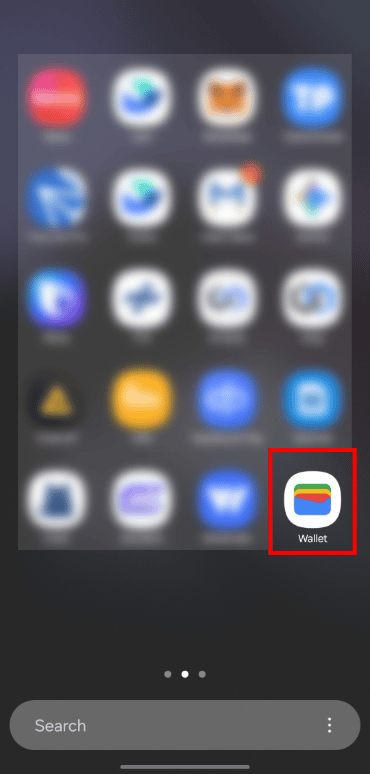
Step 2: Add a Payment Card
- Action: Tap 「Add Payment Card」 or the 「+」 icon on the homepage
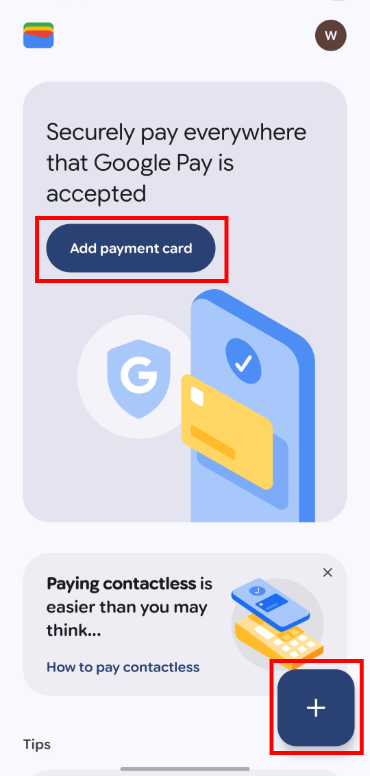
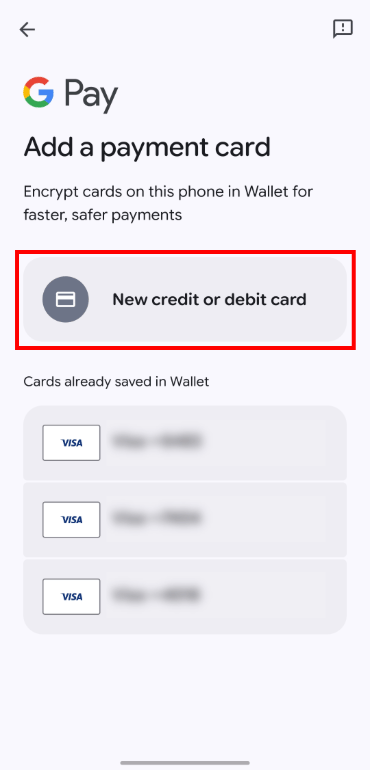
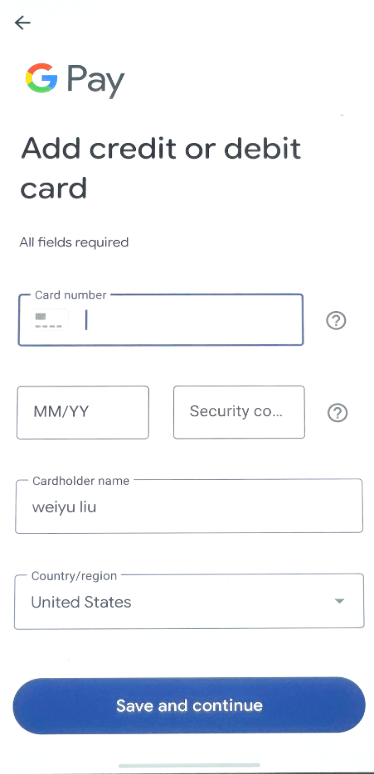
Step 3: Enter Card Information
- Action: Fill in the card number, expiration date, CVV, and cardholder name
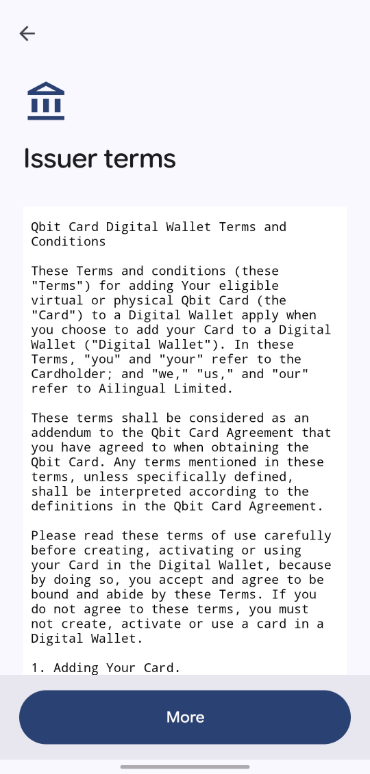
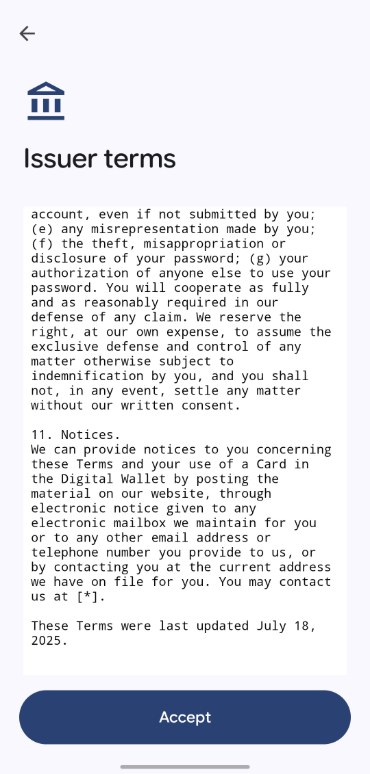
Step 4: Accept Terms
- Action: Read and accept the card issuer’s service terms
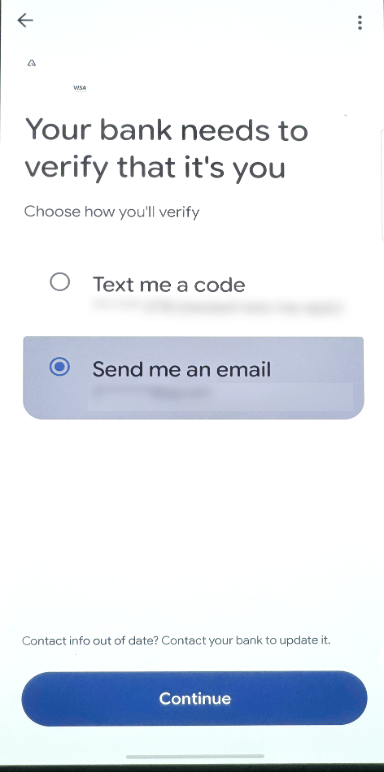
Step 5: Identity Verification
- Action: Complete the verification process via SMS/email/App
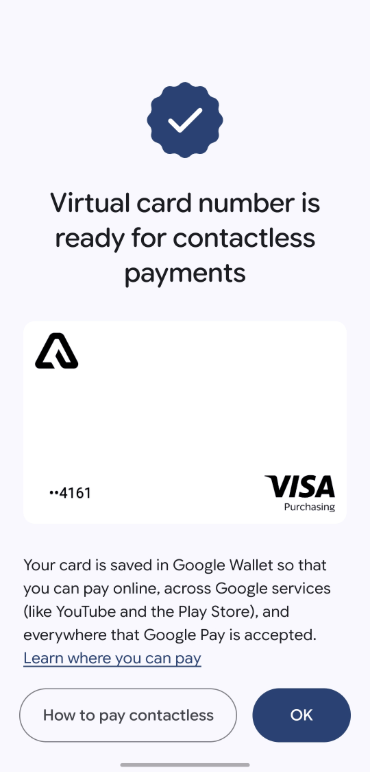
Step 6: Binding Successful
- Prompt Message: Card successfully added to Google Pay
- Available Scenarios:
- In-store offline NFC payments
- In-app and online web payments
- Linking to Google services (YouTube Premium, Google Play Store, etc.)
Global Security Reminders
Reminders:- Fraud Prevention: Do not enter passwords/verification codes on third-party websites when adding cards; guard against phishing attacks
- Device Security: Set a lock screen password, fingerprint, or facial recognition to prevent unauthorized use
- Transaction Monitoring: Check transaction records in real time via the PayFun App to ensure transparent transaction details
Usage Tips
Preparation
- Account Preparation: Ensure you are logged in to a valid Google Account
- Card Information: Prepare the complete details of your PayFun virtual card or physical card
Payment Methods
- Offline Payments: Unlock your phone and hold it near the POS terminal’s NFC reader
- Online Payments: Select Google Pay as the payment method on supported Apps or websites
- Google Services: Can be used to pay for Google Play Store, YouTube Premium, and other services