
Overview
Description: iPhone user binding process for Apple Wallet Purpose: Enable offline NFC payments and online App/web payments via Apple PayDetailed Operation Steps
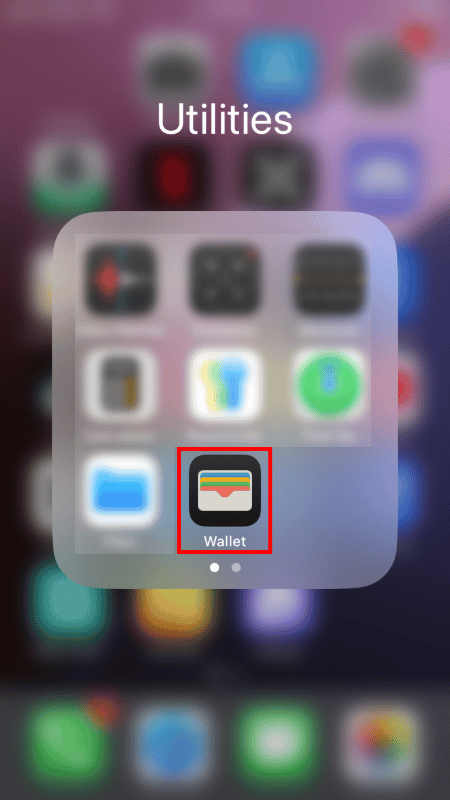
Step 1: Open the Apple Wallet App
- Operation: iPhone Home Screen → Tap the pre-installed Wallet app
- Function Description: Apple Wallet is the official digital wallet for managing payment card credentials
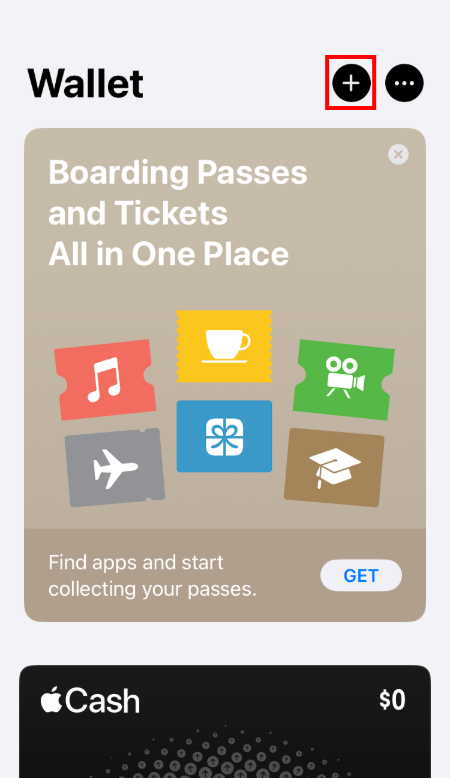
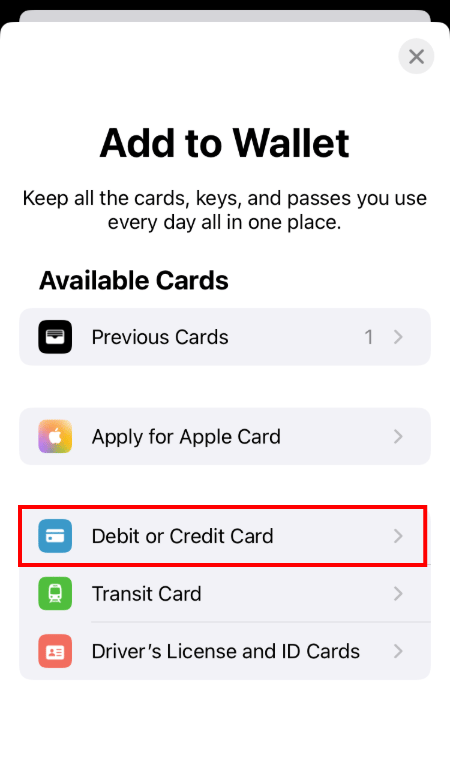
Step 2: Select to Add a Card
- Operation: Choose the Debit or Credit Card option (auto-redirected for first-time addition)
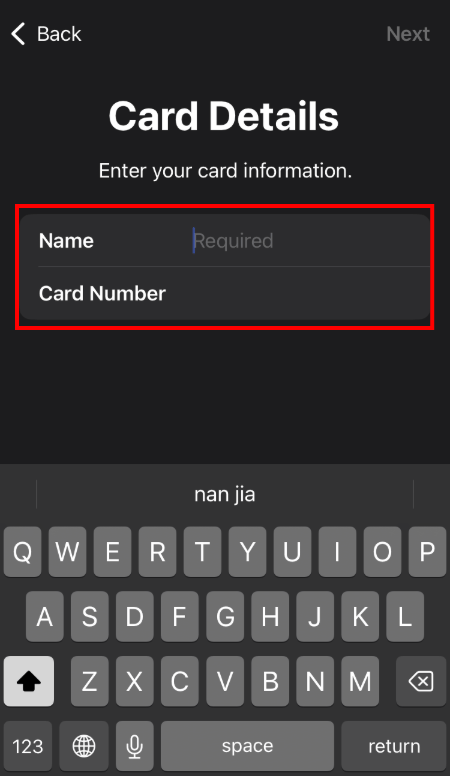
Step 3: Enter Card Information
- Operation: Tap Enter Card Information Manually → Fill in the card number, expiration date, and CVV

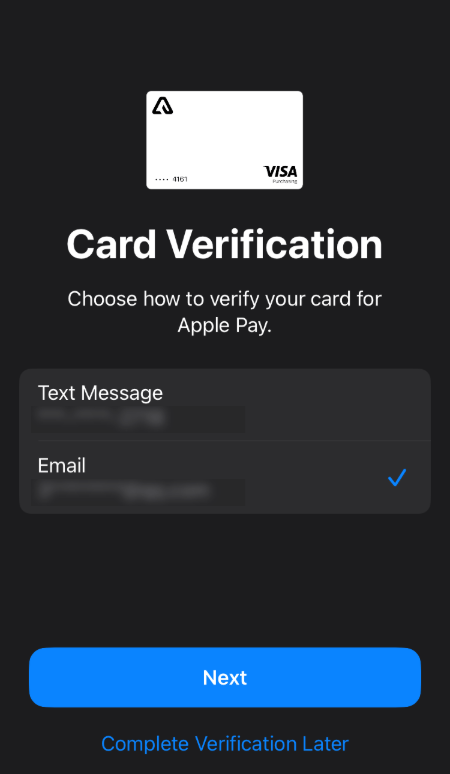
Step 4: Agree to Terms and Complete Verification
- Operation 1: Read and accept the terms and conditions of the bank/payment service provider
- Operation 2: Complete verification (SMS verification code/email verification). Note: Priority is given to email verification; SMS verification may not be available in some regions.
Step 5: Complete Binding
- Result: Card activation successful

Usage Tips
- Preparation Materials: Ensure you have obtained all information of your PayFun Virtual Card (card number, expiration date, CVV)
- Network Connection: Maintain a stable network connection during the operation
- Account Status: Ensure your PayFun account has completed KYC verification and the card has been activated
Frequently Asked Questions
Q: Why am I unable to add a card?
- A: Please check your network connection, card status, and whether you have completed KYC verification
Q: What should I do if verification fails?
- A: Ensure the verification code entered is correct; if verification fails multiple times, try resending the verification code
Q: How do I use the card after successful addition?
- A: For offline payments, double-click the side button to wake up Apple Pay; for online payments, select Apple Pay as the payment method